Search this blog for other interesting articles

Showing posts with label transport. Show all posts

Friday, 30 September 2011

Transport Error – Transport Control Program tp ended with error code 0247

This article answers the following queries:
  • How to resolve the transport error “Transport Control Program tp ended with error code 0247?
  • How to resolve the transport error – Errors: addtobuffer has problems with data- and/or cofile?
  •   How to resolve transport issue  encountered while adding a transport to import queue of target       system?
--------------------------------------------------------------------------------------
Sometimes, while you are adding a transport request into import queue of target system as shown below, you might encounter error as
 “Transport Control Program tp ended with error code 0247 "?
Errors: addtobuffer has problems with data- and/or cofile? (Please refer screenshot 3)


After pressing Yes in the above screen, you may encounter below error:


Most probable reasons for this issue could be, due to transport did not get released from the source system.
Please login to the source system of the transport and goto transaction SE01 and provide the transport number as shown below and click on display pushbutton to view the release status of the transport


In the below screen, please drill down the transport and check whether all the transports under this are released ( if there is tick mark after the transport, it means it was released).
If there is no tick mark on any of the  transports below the given transport number it means the transport is not yet released. In those cases, you can even view truck symbol in the active state.


In the above screenshot, all the underlying transports were released(as there is tick mark after those transports), but the main transport is not yet released as indicated my active status of the truck. In these cases, just keep the cursor on the main transport number and click on truck symbol to release the transport.
Please note that you can release the transport only if you have access to do the same. If basis administrator do not have access, he/she should approach the respective team and get this transport released as per the process mentioned above.


Please find below another scenario, in which 2 of the 3 child requests not released. In this case, each of the individual transport to be selected and released (by clicking truck button) and finally release the main transport.


Once the main transport is released, data file and  cofiles will be generated for that transport request in the source system. Then no longer, the error mentioned above will be encountered will adding the transport request to import queue of the target system as the request was released and data and cofiles were also generated under /usr/sap/trans/data and /usr/sap/trans/cofiles directories of the system.


Related Link:


Enter your email address:


Delivered by FeedBurner


Monday, 5 September 2011

How to view import history in SAP ?


This article answers the following queries :
  • How to view import history of transports in SAP ?
  • How to view transports that were imported into a SAPsystem between any 2 time periods?
  • What are the scenarios in which import history can be used in SAP?

-------------------------------------------------------------------
 In real time scenarios, there will be circumstances like
i) You are facing particular issue from a particular day. So, after analysis, you have suspected this could be due to some transports done on a particular duration. So, now we need to know what are the transports imported between this duration
ii) You have restored data of SAP quality system and did system refrresh to setup another training SAP system. After some days, some transports were done to Quality system. Now, you would like to perform transport sync to ensure these systems are consistent.
In the above scenarios, you would like to know what were the transports imported into SAP system between any 2 dates/times. This can be done by viewing import history at SAP level.

To view the import history, proceed as follows :

1)   Login to SAP ABAP system and goto STMS transaction code as below and click on truck icon to goto import overview of the SAP system.


2) In the below screen select and double click the SAP system and for which you would like to view the import history


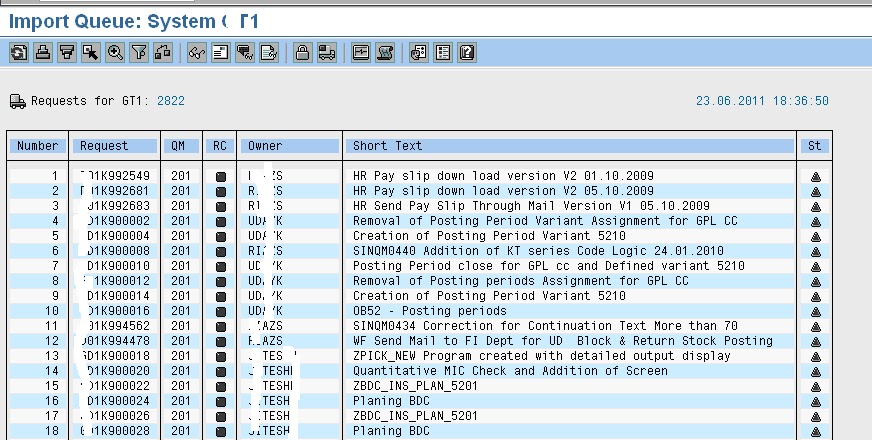
3) Then you can view Import Queue of the SAP system.


4) To view transport import done between any 2 dates (import history), right click on this screen which pops some options. Select Import history from that popmenu or press ctrl + F7 button to view the import history screen as below


5) In the above screen, you can select the To date and from date and specify time interval to view the transports that were done between these 2 time periods.

The resulting output will be similar to below screen


Friday, 24 June 2011

Troubleshooting long running transport

This article answers the following queries :


  • How to troubleshoot when a transport is running for unusually long duration and not getting completed or terminated ?
  • How to troubleshoot when a transport is in truck status for a long duration of time ?
  • How to cancel a transport request which is in truck status or running status ?
  • How to terminate a long running transport request to re-import again ?
  • Transport is not getting terminated. How to do terminate?


How to troubleshoot when a transport is running for unusually long duration and not getting completed or terminated ?


Go to transaction STMS_IMPORT and identify the transport which is running since a long duration.

In the below screenshot, transport with the truck symbol is the long running one

Thursday, 23 June 2011

How to import transport into an SAP system ?

This article answers the following query :

  • How to add a transport to the import queue of a SAP system?
  • How to import transport into an SAP system ?
  • What are the different modes of transport request and their significance ?
  • How to check the transport log of a particular transport request ?


Login to the system in which you would like to import a transport request and go to transaction STMS_IMPORT as shown below :


Press Ctrl + F and search for the transport request to be imported into this system.

If the request is not yet added to the import queue, navigate to Extras -> Other Requests -> Add   (as  shown in below screen)


Once you click on add, you will be prompted to enter transport request details as below:


Please enter transport request number and tick Import Again checkbox and press icon.

System then prompts you to confirm to attach transport request to import queue of the system. Press proceed to confirm the same.


Then transport will get added to the import queue.

Now to import the transport, select the transport and press truck button to import the request


Then system prompts you to enter following details :


Please provide Target client number and select immediate radio button to import the request immediately or specify timing or event details in case you would like to carry out the transport at a later point of time.


In the execution tab, select the mode of import synchronous or asynchronous.

If import is executed synchronously, dialog or background process is blocked until import has ended. If import is executed asynchronously, dialog or background process will be released after start of import.


What is the different modes of transport import ? What is the significance of them ?


Once you provide all these details, press tick mark


Click on Yes to confirm import which triggers import of transport into the system and will return the return code after completion.


Once import is done, you can check the status of import in the import log  by selecting the request number in the import queue and press logs icon as shown in screen below :


This will display the overview of transport log as shown below. If all steps are successfully completed then the import is successful. If any of the steps failed, try to identify the reason for failure, troubleshoot and try to import again.


Related Links :


Search this blog for other interesting articles

Please subscribe & activate link received to your email id to receive latest articles

Enter your email address:

Delivered by FeedBurner