Search this blog for other interesting articles

Showing posts with label SAP notes. Show all posts

Friday, 16 August 2019

How to view all SAP notes that are included in a support package?


This article answers following queries:

  •          How to identify SAP notes that are part of a given support package?
  •      How to view all SAP notes that are included in a support package?
  •      What is the process to find SAP notes that are included in a support package?


-------------------------------------------------------------------------------------------------------

Please login to Service Market Place software delivery center using your S-user credentials


It will lead to above page.


In the above page, please click on Access downloads link under Support Packages & Patches. It will result in below screen.


In the above screen, next to Downloads drop down box, mention the support package details, for which you want to identify SAP notes within it.

For example, if you wish to identify SAP notes that are present in support package SAPKB70011, please mention it next to drop down menu and click search, which results in following screen.


In the above screen, please select check box related to support package and click on icon “Content Info” icon, highlighted in the green color above.


It displays list of SAP notes within that support package as shown below. 


Using same procedure, we can find out Sap notes of any given support package.


I hope, above mentioned process is very clear to view SAP notes that are included in a given support package.

Tuesday, 30 August 2011

How to search notes in SAP service Market Place ?

This article answers the following queries :

  • How to search notes in SAP service Market Place ?
  • How to download notes from SAP service market place?
--------------------------------------------------------------
1)   Please login to SAP service market place as below :
      Type the following link on any browser
It opens a page similar to below screen and prompts to enter your market place credentials. you have to enter your s-user id and password and authenticate yourselves.


2)      Afterwards navigate to Help & Support  -> Search for SAP notes as shown in the below screen


3)      In the SAP Notes search screen,  in case you already know the note number, you can directly enter the note number in the box provided (highlighted) and press enter which  opens up the note number mentioned.


4)      Incase you donot know any specific note, you can do note search using key words.
In the example am searching notes with keywords “java is not coming up”.
It displays screen as shown below with the relevant notes. From those notes you can select the notes that are relevant for your problem and the system.


5)      To open any note from the displayed list, simply double click on that links that are displayed which opens the note as shown below


Click on the PDF pusbutton in the opened note to download the note in PDF format


Tuesday, 5 July 2011

How to apply a note in SAP system ?

How to apply a note in SAP system ?
 This article answers the following queries :
  •      What is SAP note ?
  •      What is the use of SNOTE transaction code ?
  •      How to apply a SAP note in SAP system?


What is SAP Note ?
SAP releases  notes on regular basis to provide the corrections/minor improvements to the existing bugs/issues/functionalities. Since periodicity of release of Support packages is very less, to resolve customer issues SAP releases notes to customers on regular basis to fix bugs.
 What is the use of SNOTE transaction code ?
A note can be applied in SAP system using SNOTE transaction.
 How to apply a note in SAP System ?
Before applying any note, please download SAP note. Go to SNOTE transaction and navigate as shown below and download the note that is to be applied


Enter the note number to be downloaded and press execute button to download the note as shown below 

 
You can view the downloaded note in the “New” section under SAP notes as shown below.
Once the note got downloaded, to implement the note, select the note as shown below and click on execute button to implement SAP note


After that, system prompts you to confirm that you have read the note. Please make sure you have read the note thoroughly before you implement the note. Please find out the applicability of the note to your system by cross-checking with the system SAP release/version/database etc.


As shown above press Yes button to confirm that you have read the note and proceed further. 

 
In the information popup window, press continue as shown above.
After that, systems prompts for transportable workbench request. Please click on create request button as shown in  below screen.


In the create request popup screen, please provide request details and save to create request as shown below screens 


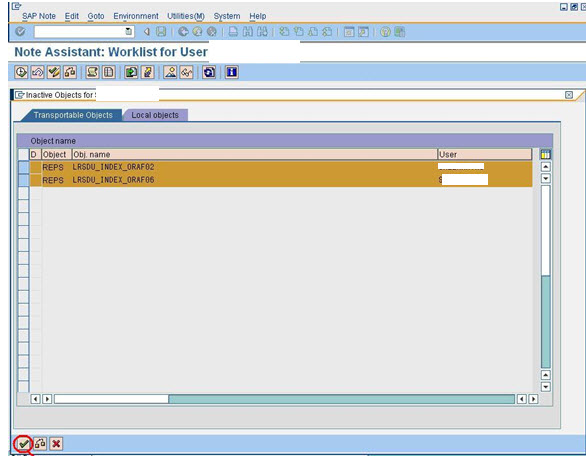
After that, list of changes that are being made will be displayed as shown below. Click on continue button to proceed to apply the changes


 Click on continue button in the  below screen to proceed further


Once the SAP got implemented successfully, it moves from New section to Processing section as shown below


Enter your email address:


Delivered by FeedBurner


Search this blog for other interesting articles

Please subscribe & activate link received to your email id to receive latest articles

Enter your email address:

Delivered by FeedBurner