Search this blog for other interesting articles

Showing posts with label ABAP program. Show all posts

Saturday, 19 March 2016

Process to be followed to identify tables that are accessed by a background job or abap program

This article answers following queries:


  • How to identify database tables that are being accessed by a given ABAP program?
  • How to identify underlying database tables for a given background job?
  • Process to be followed to identify tables that are accessed by an ABAP program?
  • Process to be followed to identify tables that are accessed by a background job?
  • How to identify ABAP program for a given SAP background job?

==================================================


In real time, we may face several scenarios like

i)             Background job is processing slow
ii)            ABAP program is taking long time to complete execution
iii)           Log_dir is getting full very fast

In the above cases, Basis team should closely work with database teams and may have to identify the reasons behind them to resolve the issues.

Example1: If background job (or an ABAP program) is taking more time to complete, one of the reasons could be statistics for underlying database tables that this job is accessing were not up to date. We may have to run statistics to fix the performance issue.
Here we need to know which database table(s) is/are being accessed by job/abap program.

Example2: If a background job is running for long duration and log_dir at Operating System level is reaching very high levels (ex: crossing 60% usage), then the reason could be there is an issue with underlying abap program. If single or multiple processes running for long time without commiting work to the database, log hold up will happen and log_dir usage will increase. If it crosses 70%, SAP system will face performance issues and if it reaches 100%, system wouldn’t be accessible.

To resolve this issue, developers need to modify ABAP program & make sure there are frequent commit statements. In this case also, database team may request us to provide list of tables that are being accessed by this job or program.

So, in this article I’m covering that process of identifying database tables that are being accessed by an ABAP program or a background job.
First of all, I will cover the process of identifying underlying ABAP program for a given background job. Let us say you want to identify, underlying program for SAP standard job BI_WRITE_PROT_TO_APPLLOG.


Goto SM37 transaction code and provide name of the job you would like to find abap program for and execute the same:


It results in below screen:
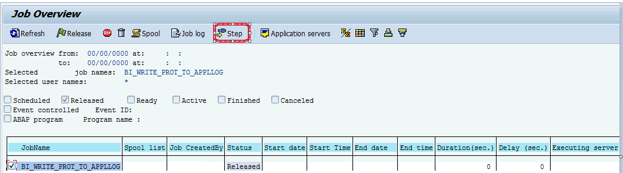


In the above screen, select the job and click on step icon (highlighted) which results in below screen


RSBATCH_WRITE_PROT_TO_APPLLOG is the underlying abap program for the given background job BI_WRITE_PROT_TO_APPLLOG. Similarly, we can identify program for any background job.

Now, our next task is to identify database tables that are being accessed by RSBATCH_WRITE_PROT_TO_APPLLOG program or BI_WRITE_PROT_TO_APPLLOG job.


Go to SE38 transaction and provide program name:


In the same screen, navigate to Utilities -> Environment Analysis as shown below


It will result in below screen.


As we need only database tables, please deselect all ticked options by clicking highlighted icon and select only database table check box and execute (as shown below).


It will result in below screen, which lists the database tables that are being accessed by this program.


This is the process to identify database tables for a given background job or an ABAP program.


Monday, 15 June 2015

How to identify whether an ABAP program has been modified recently?

This article answers following queries:

  • How to identify whether an ABAP program has been modified recently?
  • How to identify the date/time on which an ABAP program was modified?
  • How to identify version of an ABAP program?
  • Background is not running as expected?

----------------------------------------------------------------------------


Sometimes, there might be scenarios like a background job is not running as expected. Job owner / functional team may complain to Basis team that till last week it worked fine but only this week they are facing performance or any other issues like the job might be taking long time to complete, job might be getting terminated abruptly, job might be going to hung status etc.

One of the main reasons for these type of issues, could be due to recent change/modification done to the underlying ABAP program.


So, how to check if the underlying ABAP program has been changed/modified recently or not. If modified, when it was changed and through which transport? This can be checked as shown below:

Goto SE38 transaction code and provide the name of the ABAP program for which you need to check if there were any recent changes resulting in this issue.


For example, Iam checking the recent changes made to the ABAP program : RSRFCCHK


In SE38, after providing program name, navigate to Utilities -> Version -> Version Management (as shown below):


This will result in following screen, which lists you the list of versions of the respective ABAP program and the latest active status of the program and the date on which it was modified.


If you are encountering the job issues exactly from that program modification date/time, then we can suspect these issues are cropping out because of program change and necessary actions can be taken by the ABAP team to fix the performance issues that were noticed.


How to identify ABAP program for a given background job?


This article answers following queries:

How to identify ABAP program for a given background job?

-----------------------------------------------------------------------------------

Sometimes, it is required to know the underlying ABAP program name for a background job.
This can be identified as shown below:


Goto SM37 transaction code. It will result in below screen. Please input job name for which you would like to know the underlying ABAP program.


After selecting necessary job status, click on execute which results in below screen


Double click on the above job name to display job details as shown below


Click on step icon (highlighted) which shows the step list overview (as shown in below screen)


Highlighted item is the underlying program name/command.
Parameters is the variant for that program and User is the “user id” with which this job will be executed.

Note: Sometimes, we can view multiple programs as steps based on the Job definition done. In other words, a job can have multiple programs or commands as steps


Search this blog for other interesting articles

Please subscribe & activate link received to your email id to receive latest articles

Enter your email address:

Delivered by FeedBurner