Search this blog for other interesting articles

Showing posts with label SAP Parameters. Show all posts

Tuesday, 30 August 2016

How to identify recent parameter changes in SAP system?

This article answers following queries:
  • How to identify recent parameter changes in SAP system?
  • Which tcode is used to identify recent parameter changes of SAP system?
  • How to identify changes done to sap parameters after a given period?
  • How to view active parameters of SAP system?
  • How to determine the date on which sap parameter values were recently changed?

==================================================


Sometimes, while troubleshooting, we may have requirement to identify SAP parameters that were modified recently.

 Example Scenario: Customers might be encountering performance issues (or any other accessibility issue) in SAP system. In those cases, we can check with customers from which date/time they are encountering this issue and we can check in system if any SAP parameters were modified during that time resulting in this issue.

1) To identify recent parameter(s) changes, TU02 tcode can be used.

Login to SAP ABAP system and execute transaction code TU02 which results in below screen

Screen 1:


In above screen, we can identify the date of most recent SAPSYSTEM parameter changes.

For example: In the above screenshot, we can determine that most recent SAP parameter changes were done on 02/12/2016 on mentioned host (highlighted in red)

2)  If you would like to know what SAP parameters were modified after a given date, click on “Select Period” push button in the above screen (highlighted in blue)

This results in below screen. Please enter date from which you want to know modifications done to SAP parameters and click on tick button


Screen 2:


This results in screen, similar to below, which lists date on which parameters were changed, parameter that was changed and new parameter value.

Screen 3:


3)   If you would like to know SAP active parameters, please click on “Active Parameters” pushbutton on Screen1 (highlighted in yellow). This will result in below screen, which shows parameter and its current (or active) value

Screen 4:


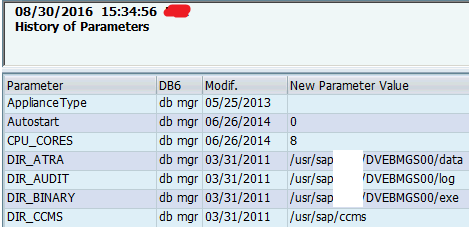
4) If you would like to know history of SAP parameters, please click on “History of File” pushbutton on Screen1 (highlighted in white). This will result in below screen, which shows parameter name, latest modified date and its new value

Screen 5:


Thursday, 16 June 2011

How to change SAP parameters ?

This article answers following query :
How to change or set a SAP parameter


SAP parameter can be set using RZ10 transaction. Go to RZ10, select the respective instance profile of the application server on which you would like to change the parameter.
From the dropdown of profile, select the instance profile (of the application server) on which you would like to change the parameter.


After selecting the profile, select extended maintenance button and press change push button.

It displays a screen with all the parameters as shown below :

You can  either search the parameter or create the parameter and then set the value to the desired and save the same as below.

Set the parameter value in the text box provided and click copy button to copy the same and then press back button and press copy again in the next screen. After that press the back arrow to come to the following screen

Click on Save button to save and activate the profile.

Press no to goto the next screen


Press yes, to activate the profile.


The parameter will take effect after restart of the application server


Wednesday, 8 June 2011

What is the difference between dynamic and static parameter

This article answers following queries :

  • What is a SAP parameter?
  • Different types of SAP Parameters?
  • How to identify whether a parameter is dynamic or static ?

***************************************************************

In SAP, parameters are used to set the configuration and define the functionality of an sap system like number of workprocesses, buffer size, locktable size etc.

Basically there are 2 types of parameters :

  • Static
  • Dynamic
Static are the parameters those won't take effect immediately the value is set. Restart of an sap system is required for them to take effect.

Dynamic are the parameters those will take effect immediately in the run time. Restart of an sap system is not required for them to take effect.

Parameter can be differentiated whether it is dynamic or static by checking in RZ11 transaction of SAP.


 In Rz11, type the parameter and display it. In the screen , there will be a check box with description as "Dynamically switchable". If that check box is ticked, it means that it is dynamic parameter and value can changed in run time without restart of the system. If it is not ticked, then it is static parameter and it needs restart of a sap system for the changes to take effect. 

In latest version SAP systems also, we can verify this through RZ11 tcode. Output might be bit different as shown below :


Search this blog for other interesting articles

Please subscribe & activate link received to your email id to receive latest articles

Enter your email address:

Delivered by FeedBurner