Search this blog for other interesting articles

Showing posts with label database. Show all posts

Sunday, 5 July 2015

What is the use of database utility in SAP?

This article answers following queries:

  • How to remove entries from the tables in SAP?
  • What is the use of SE14 transaction in SAP?
  • What is the use of database utility in SAP?
  • How to invoke database utility in SAP?


------------------------------------------------------------------------

The database utility is the interface between the ABAP Dictionary and the relational database underlying the R/3 System. This tools allows you to edit database objects derived from objects of the ABAP dictionary.

Using database utility, we can create, delete and adjust to changes to database objects definition in the ABAP dictionary.

SE14 transaction is used for invoking database utility.

As part of post system refresh activities, we need to remove entries from specific tables (mentioned below), activate and adjust the database.

Table List

ALCONSEG
ALSYSTEMS
DBSNP
MONI
OSMON
PAHI
SDBAD
SDBAH
SDBAP
SDBAR
TPFET
TPFHT
TLOCK
SWNCMONI
SAPWLSERV
SWNCMONIINDEX

Process for removing entries, activating and adjusting the database is mentioned below.

Go to transaction SE14. It will result in below screen.


Please provide table name in the object name text box and select “Tables” radio button and click on edit as shown above. It will result in below screen.
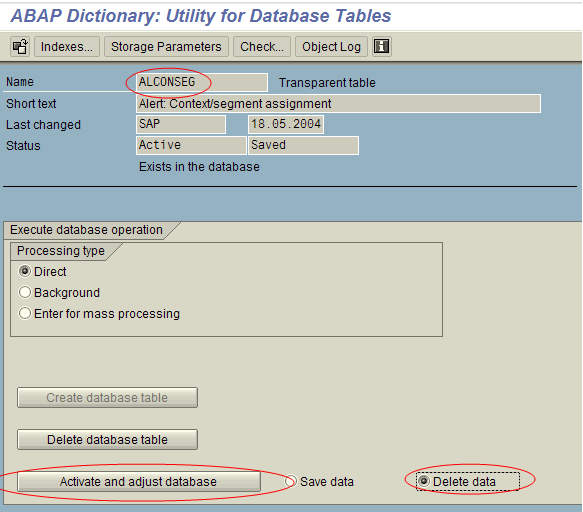


In the above screen, make sure Processing type is selected as “Direct” and select “Delete data” radio button and click on “Activate and adjust database” button (as shown above).


The above message will appear at the bottom of the screen indicating success of the transaction.

In the above example, I have documented the process to be followed for deleting entries of ALCONSEG table. However, as part of post system refresh activities, this process to be carried out for each of the above mentioned tables.


Tuesday, 21 June 2011

How to check database, tablespace sizes in SAP ?


This article answers the following queries :
  • How to check the database size ?
  • How to check in SAP, the number of tables and indexes in database and their sizes ?
  • How to check  the users that are present in database at SAP level ?
  • How to check various tablespaces in SAP and their sizes ?

 ---------------------------------------------------------------------------------------


How to check the database size ?

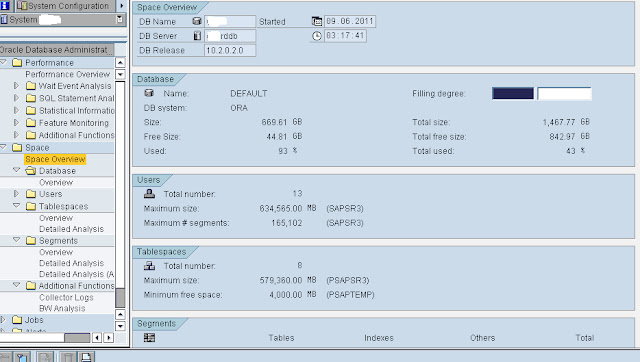
Goto transaction DB02  and navigate to Space -> Space overview to view

  • Database name
  • Database system
  • Size
  • Free size
  • Used percentage
  • Number of database users
  • Number of tablespaces
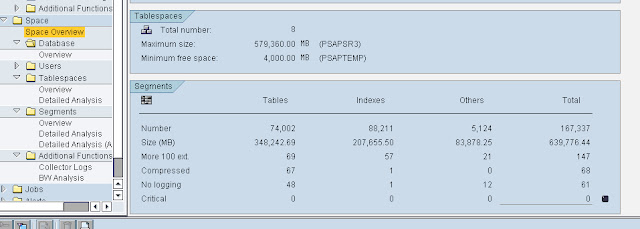
  • Number of tables and size
  • Number of indexes and size

In DB02, navigate to Space -> Space overview to find all the above mentioned details


    How to check  the users that are present in database at SAP level ?

    In DB02, navigate to Space -> Users -> Overview as below


              How to check various tablespaces in SAP and their sizes ?

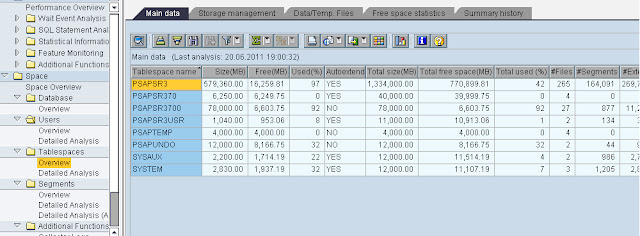
              In DB02, navigate to Space -> Table spaces -> Overview to view tablespaces details as below.


                    How to view database parameters at SAP level ?

                    This article answers the following queries:


                    • How to view database active parameters at SAP level ?
                    • How to view SPFILE parameters at SAP level ?
                    • How to view database Parameters history at SAP level ?
                    • How to export the database parameters to an excel sheet ? 


                    How to view database active parameters at SAP level ?


                    Goto transaction DB02 and navigate to Additional Functions -> Database parameters as shown below  :


                    Click on Active parameters tab to view active database parameters


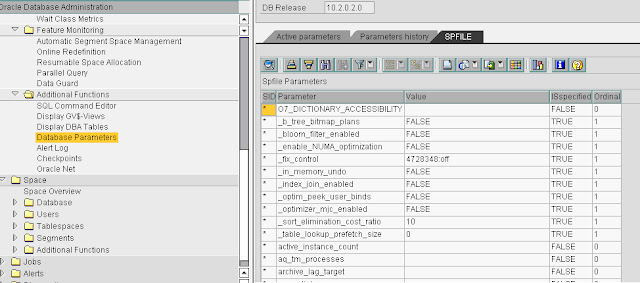
                    How to view SPFILE parameters at SAP level ?


                    Click on SPFILE tab to view SPFILE parameters


                    How to view database Parameters history at SAP level ?


                    Click on parameters history tab to view the parameters that are changed in the recent past.


                    In the above screen click on Show parameters history. It displays window as below


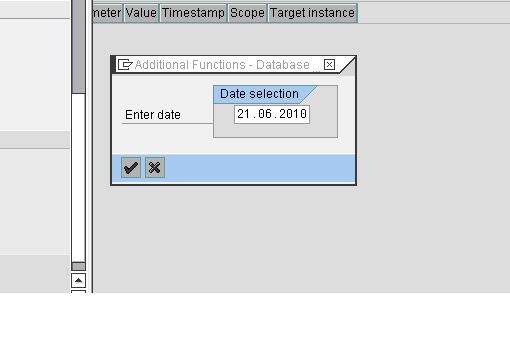
                    Provide the date from which you would like to view the database parameter changes.


                    And then click on tick mark to view the database parameter changes from the selected date.

                    How to export the database parameters to an excel sheet ?


                    Click on export button (highlighted below) and select table as the output as shown in below screen and the parameters can be exported to an excel or word as per the selection by you.


                    Monday, 13 June 2011

                    How to add or extend datafiles in sap system based on oracle database ?

                    This article answers the below queries :

                    • What is the database administration tool supported by SAP for oracle database?
                    • What is BRTOOLS ?
                    • How to access BRTOOLS ?
                    • How to add or extend datafiles in sap system based on oracle database
                    -----------------------------------------------------------------------------

                    What is BRTOOLS?

                    BRTOOLS is the database administration tool supported by SAP for oracle database.

                    How to access BRTOOLS ?

                    BRTOOLS can be accessed by logging into database host as ora<sid> user and calling brtools at the command prompt.

                    How to add or extend datafiles in sap system based on oracle database?

                    Once brtools is called at command prompt, following menu will be displayed

                    BR*Tools main menu

                    1 = Instance management
                    2 - Space management
                    3 - Segment management
                    4 - Backup and database copy
                    5 - Restore and recovery
                    6 - Check and verification
                    7 - Database statistics
                    8 - Additional functions
                    9 - Exit program
                    Standard keys: c - cont, b - back, s - stop, r - refr, h - help
                    ======================================
                    Select option 2 - Space management from the above query and press c to continue.

                    It displays another screen as below :

                    Database space management

                    1 = Extend tablespace
                    2 - Create tablespace
                    3 - Drop tablespace
                    4 - Alter tablespace
                    5 - Alter data file
                    6 - Move data file
                    7 - Additional space functions
                    8 - Reset program status


                    Standard keys: c - cont, b - back, s - stop, r - refr, h - help
                    =============================================
                    Select Option 1- Extend tablespace and press continue.

                    In the next screen, you will be prompted to enter tablespace name, size/location of new datafile to be added, initial filesize, maximum filesize, autoextend (yes/no). Please provide all the relevant details and you can see an SQL query is being built based on the inputs given by you.

                    Once all the inputs are provided, press continue to execute the command and the datafile will be added.


                    Search this blog for other interesting articles

                    Please subscribe & activate link received to your email id to receive latest articles

                    Enter your email address:

                    Delivered by FeedBurner