Search this blog for other interesting articles

Showing posts with label unlock. Show all posts

Monday, 22 June 2015

How to lock or unlock transaction code (tcode) in SAP system?

This article answers following queries:

  • How to lock transaction code (tcode) in SAP system?
  • How to unlock transaction code (tcode) in SAP system?
  • How to view list of tcodes that are locked in SAP system?
  • Which tcode is used to lock or unlock tcodes in SAP system?
  • How to identify whether a tcode is locked or not in SAP system?
  • While trying to execute a tcode in SAP system, it says “Transaction is locked”. What’s the reason?
  • What is the report to identify locked transactions in SAP system?


-------------------------------------------------------------------------------------

Sometimes, there might be a business requirement to lock a particular transaction in SAP system (for a particular period) so that no one is allowed to execute those transactions

For eg: Lock SE38 so that users are not allowed to execute reports
           Lock STMS_IMPORT so that users are not allowed to import transport requests etc.


Which tcode is used to lock or unlock tcodes in SAP system?

SM01 tcode is used for locking transactions or tcodes.


Locking Procedure:

Login to SAP system and go to transaction SM01. It will result in screen as shown below:


For example, I am demonstrating process to lock tcode SM02.

Type the tcode you would like to lock in the above screen and press search icon which displays that particular transaction.


If you would like to lock that tcode, tick that checkbox next to that transaction and click on save button to reflect the change.

After that, if locked tcode is executed by any user, it won’t get executed. It will display a message mentioning “Transaction SM02 is locked” (as shown below).


Unlock Procedure:

In case, you would like to unlock this transaction, go to SM01, select the tcode, and untick the checkbox and press save button.

It unlocks the transaction and everyone would be able to execute that transaction.

Note:

  • In some versions of SAP systems, lock/unlock toggle button will be there to lock or unlock transactions( as shown below). So, instead of simply clicking Save button, you may have to click "lock/unlock" button. 

Please note the difference and act accordingly
  • If you lock / unlock a tcode in a particular client, it is applicable for all the clients of that SAP system. It means, if you locked a tcode in 100 client of an SAP system, this tcode will get locked in all other clients of that SAP system. So, this is system wide change and not client specific


How can we find if a tcode is locked or not?

In SM01 transaction, if you find tick mark enabled for a tcode, it means that specific transaction is locked.

Or

If you try to execute that tcode “Transaction xxxx is locked” message will be displayed

How to view list of tcodes that are locked in SAP system?

If you would like to view all transactions or tcodes that were locked in that SAP system, you can find out by navigating to SM01 à Transaction Code à Press F6 or select Display Locked Transactions (as shown below)


Once it is selected, it displays list of locked transactions as shown below:


RSAUDITC report can be executed through SE38 or SA38 to find out list of locked transactions in SAP


Friday, 5 August 2011

How to unlock if SDM user id got locked in SAP ?

This article answers the following queries :
  • How to unlock if SDM user id got locked in SAP ?
  • SDM deployments fail due to SDM account lock. How to unlock?
  • SDM account got locked after 3 successful attempts. How to unlock?


Sometimes, you encounter a situations like
i)    SDM deployments fail and upon investigation you found that SDM account got locked. You can only deploy again after unlocking the SDM account.
ii)   User tried to login to SDM account with wrong password three t imes and account got locked.

Proceed as follows to unlock the SDM account :
If your operating system is windows, please proceed as follows :
i)       Open the command prompt
ii)      Login as sidadm
iii)    Navigate to the following path :
            <Drive>:\usr\sap\<SID>\JC<nn>\SDM\program
iv)    At this path  provide the following commands:

                sdm jstartup “mode=standalone”
                sdm changepassword “newpassword=Enterthenewpassword”
                sdm jstartup “mode=integrated”
                startserver.bat

If your operating system  is Unix, proceed as follows :

i)                   Open a telnet window
ii)                 Login as sidadm user
iii)               Navigate to the /usr/sap/<SID>/JC<nn>/SDM/program
iv)               At this path provide the following commands :
./sdm.sh jstartup “mode=standalone”
./sdm.sh changepassword “newpassword=Enterthenewpassword”
./sdm.sh jstartup “mode=integrated”
./startserver.sh


<

Tuesday, 28 June 2011

How to lock or unlock multiple users in SAP ?

This article answers following queries :


  • How to lock multiple users in SAP ?
  • How to unlock multiple users in SAP ?
  • How to reset password for multiple users in SAP ?
  • How to create multiple users at once in SAP ?
  • How to delete multiple users at a time in SAP ?
---------------------------------------------------------------------------------------

How to lock multiple users in SAP

Login to SAP system in which you would like to lock users

Goto SU10 transaction code and enter the user ids that are to be locked as shown below.

Click on select all icon to select all the users that are to be locked.


Once selected click on lock icon as below


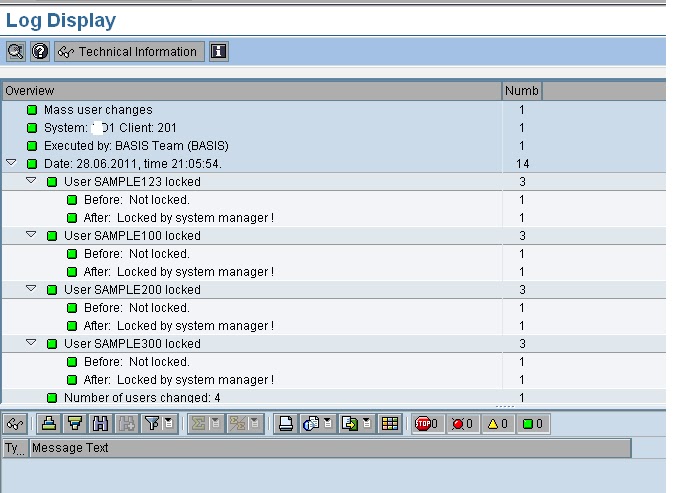
All the users will get locked and similar screen as below will be displayed


How to unlock multiple users in SAP

Enter all the users that are to be unlocked in SU10 transaction as below


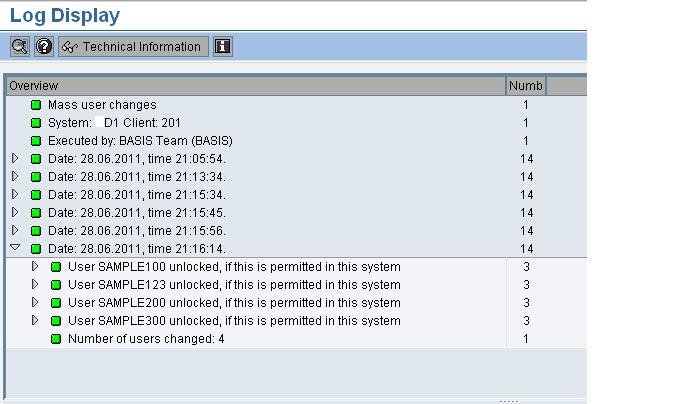
Select all user ids that are to be unlocked and Click on Unlock icon. It unlocks all the ids and displays output similar to below screen


How to reset password for multiple users in SAP

In SU10 transaction, please provide user ids for which you would like to reset the password and select all and click on reset password icon as below :


Click on generate password icon in the above screen. Then a message appears in the same window that Initial password (Set by administrator).

Click on tick button so that SAP automatically generates passwords to all the users as below:


After this the password mentioned in the above screen can be communicated to the respective user. System prompts the user to change the password on his first logon.


How to create multiple users at once in SAP

In SU10 transaction, enter the user ids that are to be created at once


Click on create icon to get the below screen


In the above screen, click on Save button which displays below screen.
Click on Yes to confirm the creation


After that, following screen will be displayed with the users created and the default password generated by the system.

The password defaults can be communicated to user and system prompts him to change password on his first logon


How to delete multiple users at a time in SAP


After entering the user ids that are to be deleted in SU10 transaction, click on delete icon :


Confirm deletion of 6 users by pressing Yes in the above screen.

Screen similar to below screen will appear confirming user ids that are deleted


Enter your email address:


Delivered by FeedBurner

How to lock or unlock users in SAP ?

This article answers the following queries :
  • What are the business requirements to lock or unlock users in SAP system?
  • How to lock or unlock users in SAP ?
  • How to change user Password in SAP?


Business requirements to lock or unlock/reset the password in SAP

1) Sometimes, users forgot the userid or password and try to login with wrong credentials. After 3 or more unsuccessful attempts, user id will get locked with the message to user "user id locked due to x unsuccessful attempts.Contact system administrator".

User complains that his user id got locked and he is not able to login. So, administrator has to unlock his user id and reset the password if required. (Please follow below procedure to do the same.)

2) When Basis team is carrying out critical activities like client refresh, support pack upgrade etc, it is recommended to lock all the users (donot lock some system users which are required by administrator) to restrict them to access the system till the activity is complete. Once the activity is complete, administrator can unlock all the earlier locked users.

How to lock or unlock users in SAP ?

Goto transaction SU01


Click on Lock icon. It displays below message and informs the current state of the user (i.e locked or unlocked currently).

If you find message like “not locked” and you would like to lock, then click on lock button in the above screen again.

On the status bar, you can see message like “User SAMPLE123 is locked”

How to unlock user id in SAP ?

Provide the user id details and Click on lock button. Currently if user id is locked, it displays following message.

Click on unlock button  to unlock the user :


Then on the status bar, it displays message like “User SAMPLE123 unlocked, if this is permitted in this system”


How to change user Password in SAP ?

Click on password button to change the password :


Provide new password twice to set the password. Once user logs in to the system providing initial password, system prompts to enter new password for security reasons


Enter your email address:


Delivered by FeedBurner

Search this blog for other interesting articles

Please subscribe & activate link received to your email id to receive latest articles

Enter your email address:

Delivered by FeedBurner