Search this blog for other interesting articles

Showing posts with label Transport import. Show all posts

Saturday, 17 September 2016

How to identify who has imported a transport request in SAP system?

This article answers following queries:

  • How to identify who has imported a transport request in SAP system?
  • How to determine user id with which a transport is imported in SAP system?
  • What transaction is used for checking who has imported a transport request?
  • How to identify which user imported a transport request in SAP system?
  • How to identify which user was used for importing a transport request?

====================================================


Sometimes, there might be requirement to determine who has imported a particular transport request.

Example Scenarios:

1) Transports were not imported in defined sequence
2) Wrong transport was imported
3) You want to determine which user id was used for transport import

In similar scenarios as mentioned above, while troubleshooting an issue, we may require to identify who has performed that transport import. Please proceed as follows to identify that

1) Login to respective SAP system, in which there is requirement to identify the user who has imported a transport request

2) Goto transaction STMS_IMPORT, which displays import queue of system (as shown below)


3)   In this screen, navigate to Goto menu and select Import History  (as shown below) to display import history of the system


4)   In that screen, Go to “Edit” menu and select “Display More” option
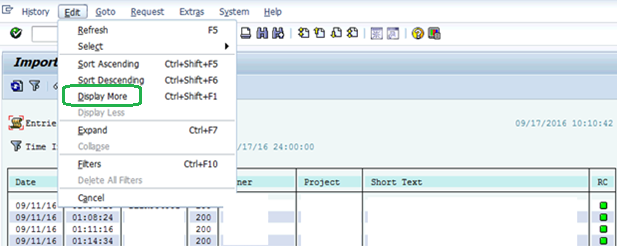


5)  It displays similar screen as shown below. Column “User” indicates user id with which particular transport got imported. Using that user id, we should be able to identify person, imported that transport


Monday, 5 September 2011

How to view import history in SAP ?


This article answers the following queries :
  • How to view import history of transports in SAP ?
  • How to view transports that were imported into a SAPsystem between any 2 time periods?
  • What are the scenarios in which import history can be used in SAP?

-------------------------------------------------------------------
 In real time scenarios, there will be circumstances like
i) You are facing particular issue from a particular day. So, after analysis, you have suspected this could be due to some transports done on a particular duration. So, now we need to know what are the transports imported between this duration
ii) You have restored data of SAP quality system and did system refrresh to setup another training SAP system. After some days, some transports were done to Quality system. Now, you would like to perform transport sync to ensure these systems are consistent.
In the above scenarios, you would like to know what were the transports imported into SAP system between any 2 dates/times. This can be done by viewing import history at SAP level.

To view the import history, proceed as follows :

1)   Login to SAP ABAP system and goto STMS transaction code as below and click on truck icon to goto import overview of the SAP system.


2) In the below screen select and double click the SAP system and for which you would like to view the import history


3) Then you can view Import Queue of the SAP system.


4) To view transport import done between any 2 dates (import history), right click on this screen which pops some options. Select Import history from that popmenu or press ctrl + F7 button to view the import history screen as below


5) In the above screen, you can select the To date and from date and specify time interval to view the transports that were done between these 2 time periods.

The resulting output will be similar to below screen


Wednesday, 24 August 2011

Manual Import process of a transport at Os level with TP program


This article answers following queries :
·         How to import a transport manually with TP program?
·         How to import a transport without using STMS in SAP?
·         How to import a transport at Os level  in SAP ?
·         How to insert a request into the import queue of an SAP R/3 system manually?
·         When performing a request import manually, what will happen if client is not mentioned?
·         Can we manually import all the requests that are present in the import queue of an SAP system? If so, how ?
·         What is the parameter file name which was similar to TP_<domain>.PFL file which was used in older SAP versions?
·         What will happen in the background if a transport request  is added to the import queue of an SAP system ?

·         What will happen if the client in which you want to import does not exist in the target system?

-----------------------------------------------------------------------------------------
Sometimes, there will be situations like you have to process transport imports manually. This can be done by TP program from the operating system level.

Transport control program TP is controlled by a parameter file TP_<domain>.PFL which is present under bin subdirectory of the transport directory.
Please note in older releases of SAP R/3, the file is termed as TPPARAM.
Before using TP for the first time, it is suggested to test the connection to the desired target system.
To perform this test, following command can be used.
tp  connect   <target system>  pf=<complete path of the parameter file>
If this test results are fine you can proceed further otherwise you need to troubleshoot the same and identify the reason for the same.

In order to insert a request into the import queue of an SAP R/3 system, use the following command:
tp  addtobuffer   <request>   <target system>  pf=<complete path of the parameter file>

If the above command is successful then, datafile and cofile of the request will get copied under respective  data subdirectory and cofiles subdirectory of the transport directory.
As the request is inserted to the import queue, it can now be imported using the following command.
tp  import  <request>   <target system>  pf=<complete path of the parameter file>
In case you would like to import all the requests that are present in the import queue of an SAP system  in the current sequence then provide the following command at oslevel.
tp  import all  <target system>  pf=<complete path of the parameter file>

You can add the following to specify a specific client for import:
client = <number of the client>
If the client is not mentioned, the data is copied to the client with the same number as the client from which the data was exported.

If the client into which you would like to import a request does not exist in the target system, the import terminates with an error message.


Thursday, 23 June 2011

How to import transport into an SAP system ?

This article answers the following query :

  • How to add a transport to the import queue of a SAP system?
  • How to import transport into an SAP system ?
  • What are the different modes of transport request and their significance ?
  • How to check the transport log of a particular transport request ?


Login to the system in which you would like to import a transport request and go to transaction STMS_IMPORT as shown below :


Press Ctrl + F and search for the transport request to be imported into this system.

If the request is not yet added to the import queue, navigate to Extras -> Other Requests -> Add   (as  shown in below screen)


Once you click on add, you will be prompted to enter transport request details as below:


Please enter transport request number and tick Import Again checkbox and press icon.

System then prompts you to confirm to attach transport request to import queue of the system. Press proceed to confirm the same.


Then transport will get added to the import queue.

Now to import the transport, select the transport and press truck button to import the request


Then system prompts you to enter following details :


Please provide Target client number and select immediate radio button to import the request immediately or specify timing or event details in case you would like to carry out the transport at a later point of time.


In the execution tab, select the mode of import synchronous or asynchronous.

If import is executed synchronously, dialog or background process is blocked until import has ended. If import is executed asynchronously, dialog or background process will be released after start of import.


What is the different modes of transport import ? What is the significance of them ?


Once you provide all these details, press tick mark


Click on Yes to confirm import which triggers import of transport into the system and will return the return code after completion.


Once import is done, you can check the status of import in the import log  by selecting the request number in the import queue and press logs icon as shown in screen below :


This will display the overview of transport log as shown below. If all steps are successfully completed then the import is successful. If any of the steps failed, try to identify the reason for failure, troubleshoot and try to import again.


Related Links :


Search this blog for other interesting articles

Please subscribe & activate link received to your email id to receive latest articles

Enter your email address:

Delivered by FeedBurner